Units
The Units tab lists the machines, vehicles and other units registered in Business Central, with the description on the left and the unit number on the right.
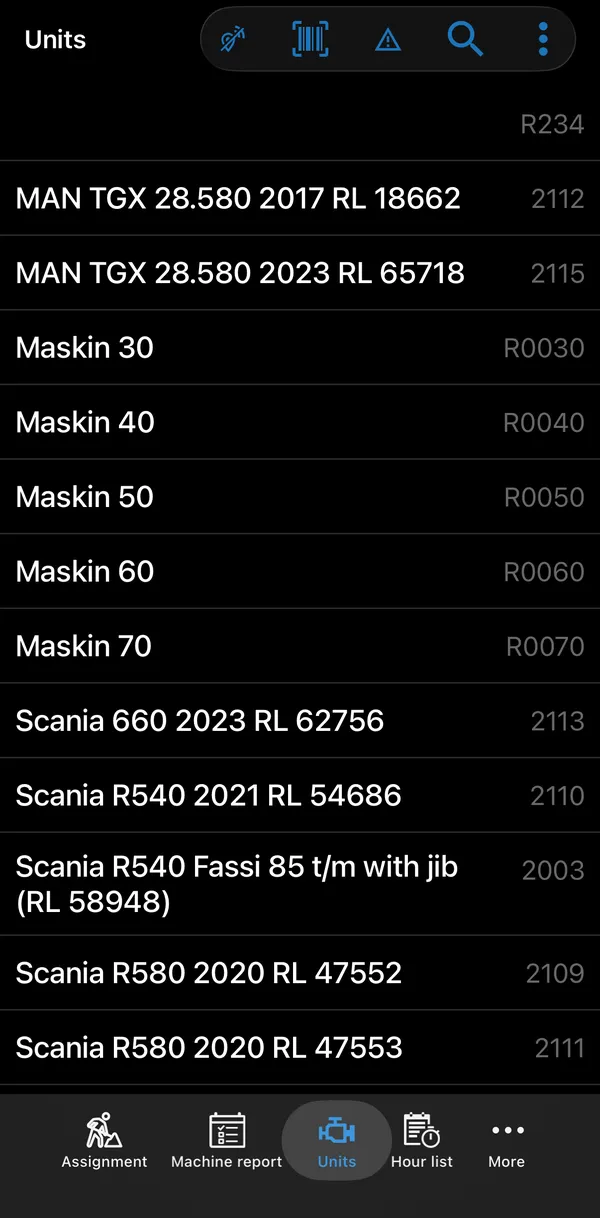
| Button | What it does |
|---|---|
| Barcode | Scan a unit’s barcode to open its details. The scanned value is matched against the start of the unit number, reg. number or serial number, or any part of the description. |
| Warning triangle | Show only units with open warnings. |
| Search | Search by description, or by the start of the unit number. |
| ⋮ → Edit | Choose your favourite units: tap the star to add a unit, or the ✕ to remove it, and tap the checkmark when you are done. Favourites are shown at the top under Favorites. |
The same favourites are shown at the top of the unit list when you choose a unit elsewhere in the app, for example on a line, a new assignment or a machine report.
A warning triangle on a unit’s row means it has open warnings. See Units with warnings.
Unit details
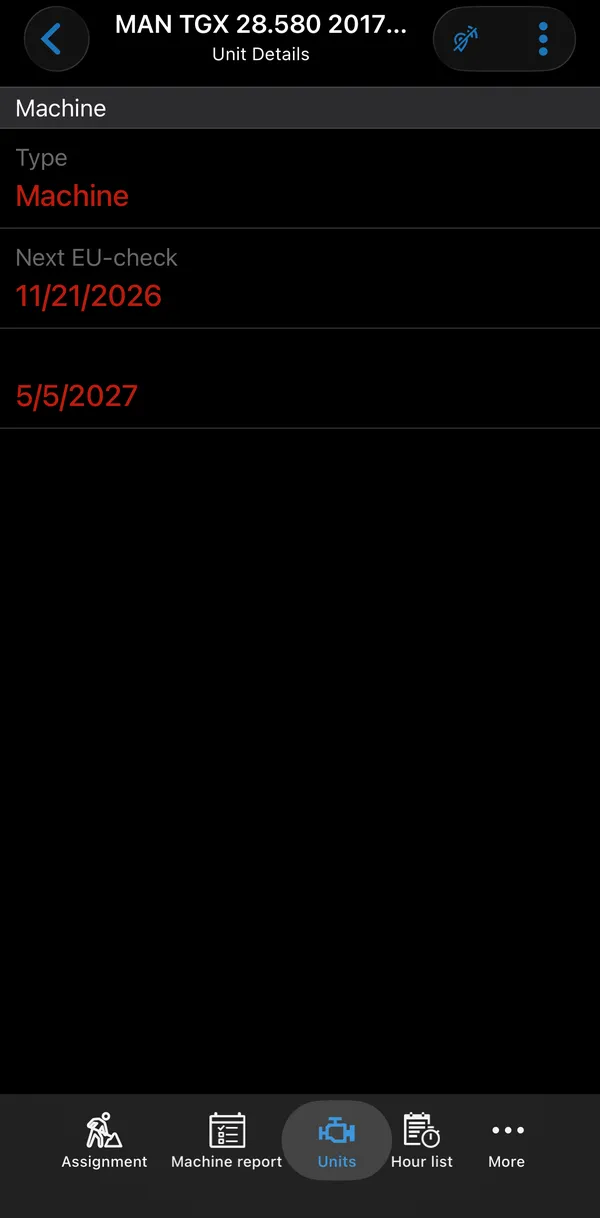
Section titled “Unit details”Tap a unit to see its details. Which fields are shown is set up in Business Central, for example type and the next inspection dates; by default they are Unit No., Description, Reg. No. and Serial No. Empty fields are hidden. Dates shown in red need attention.
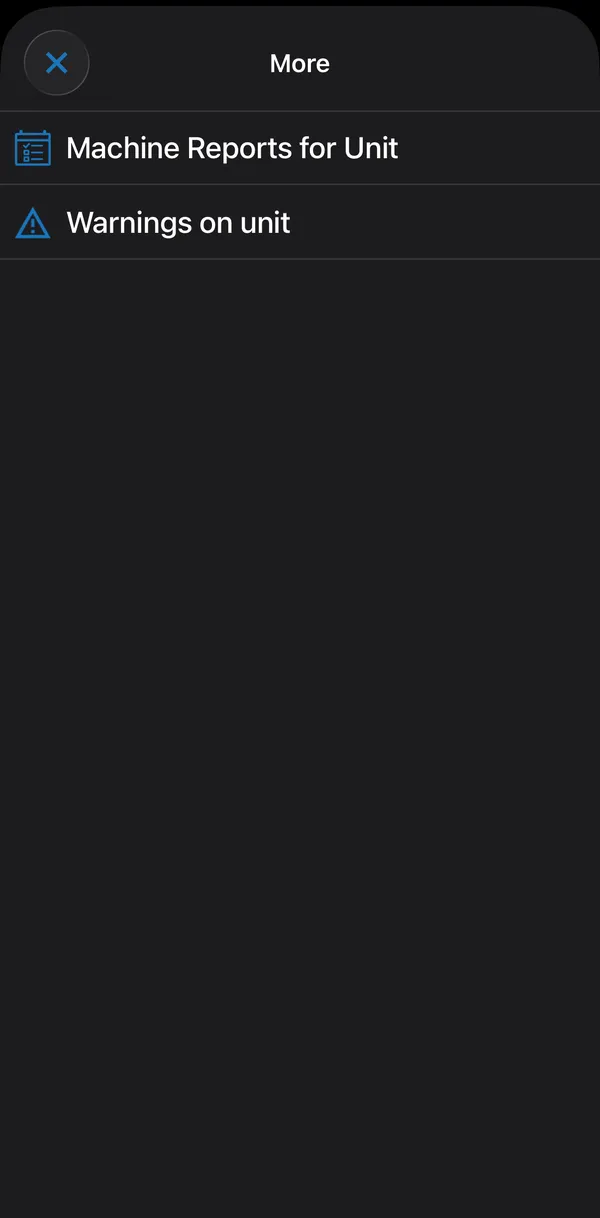
The ⋮ menu leads on to:
| Menu item | What it shows |
|---|---|
| Machine Reports for Unit | All machine reports for this unit. |
| Warnings on unit | Open warnings from machine reports and checklists. With the right permission you can change a warning’s status and add a comment. |
| Service History | Earlier service orders on the unit, with their lines. |
| Documents | Documents attached to the unit. |
Which menu items you see depends on your permissions.
Units with warnings
Section titled “Units with warnings”When a machine report or checklist for a unit has a warning, the app shows it in three places (this needs the ChecklistWarnings permission):
- In the Units list, the unit’s row has a warning triangle.
- In the unit details, This unit has warnings! is shown at the top. Tap it to open Warnings on unit.
- Warnings on unit shows the unit’s description at the top and lists its warnings. Each warning shows when it was last handled, its status, the checklist point, the issue and any comment.
Tap a warning to open Warning details, which shows its information, including the checklist point (Text), the Issue, the Comment and the Status, along with the line number, who reported it and when, and who last changed the status. Empty fields are hidden.