
Overview
Xago Mobile is the field part of Xago. Assignments are planned in Microsoft Dynamics 365 Business Central and downloaded to the phone of the employee who will do the job. On site, the employee registers hours, items and comments, completes checklists and deviance reports, takes pictures and collects signatures. Signing sends the registrations back to Business Central, where they are approved and invoiced.
The app is available for iPhone and Android. The screenshots on these pages are from the iPhone app (xago 1.6.0).
The main concepts
Section titled “The main concepts”| Concept | Meaning |
|---|---|
| Profile | Your connection to your company’s Business Central, downloaded when you sign in. It decides which company you work in and what you are allowed to do. |
| Assignment | A job planned for you: a service order or a reservation, with customer, time and machine. |
| Active assignment | The one assignment you are working on now. Lines, checklists, pictures and signatures are registered against it. |
| Line | A registration on the assignment: a salary type (work hours, allowances, travel), an item, or a comment. In line lists, each line has an icon for its type: a toolbox for salary types, a box for items and a speech bubble for comments. |
| Checklist | A form built from a template in Business Central: yes/no questions, choices, numbers, text, pictures and signatures. |
| Deviance report | A checklist used to report something that went wrong or did not match the order. |
| Machine report | A daily checklist for a unit (machine or vehicle), for example a pre-start inspection. |
| Unit | A machine, vehicle or other equipment registered in Business Central. |
| Signature | A signing that confirms a set of lines, pictures and checklists. It needs both your signature and the customer’s; on internal jobs only yours is needed. |
Finding your way around
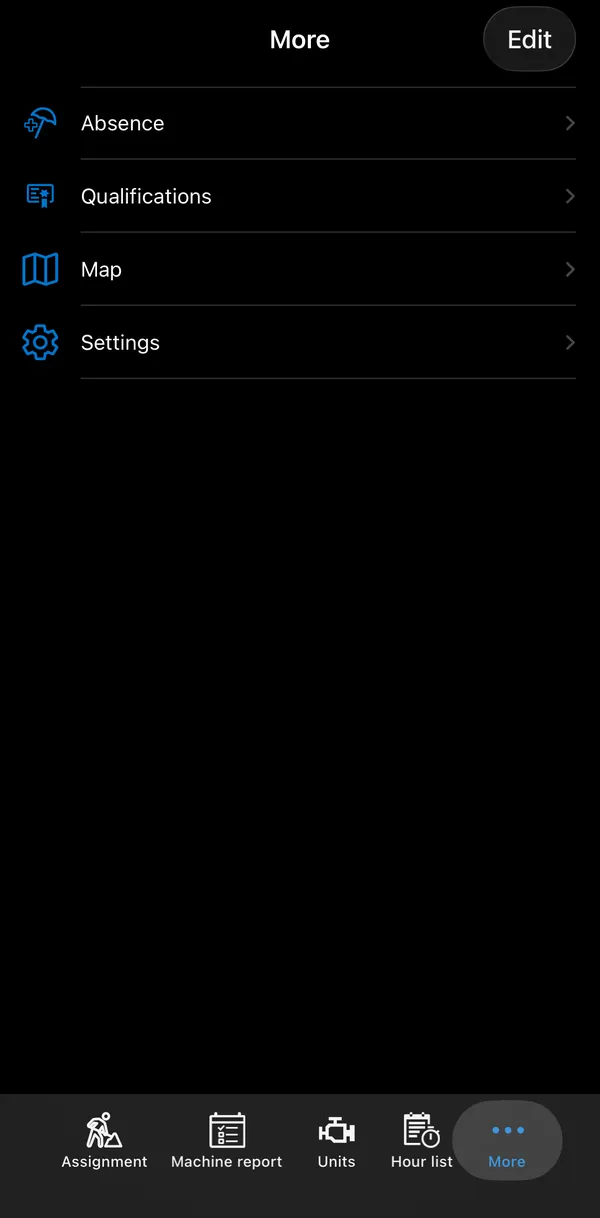
Section titled “Finding your way around”The app has a tab bar at the bottom. Which tabs you see depends on your permissions. With more than five tabs, the rest are under More, where Edit lets you choose which tabs sit on the bar.
| Tab | What it is for |
|---|---|
| Assignment | Your assignments and the active assignment. See Assignments. |
| Machine report | Daily machine reports. See Machine reports. |
| Units | The unit register. See Units. |
| Hour list | Your registered hours. See Hour list. |
| Absence | Holidays and other absence. See Absence. |
| Qualifications | Certificates and courses. See Qualifications. |
| Map | Your co-workers’ positions. See Map. |
| Check in equipment | Scanning equipment back in. See Equipment. |
| Settings | Profile, language, support and app information. See Settings and support. |
Buttons in the top bar
Section titled “Buttons in the top bar”Each screen has its buttons at the top right. Actions that do not fit are collected in the ⋮ menu, which opens as a list. A few icons recur across the app:
| Icon | Meaning |
|---|---|
| Back arrow (top left) | Go back without saving. If you have unsaved changes on an edit screen, the app first asks Confirm that you want to discard your changes? |
| Satellite dish, crossed out | GPS tracking is off. |
| Wi-Fi, crossed out | No connection: the phone has no network coverage, or the app is in offline mode. Tap it to go online again; the app asks Deactivate Offline mode? If there is no network, it says No network connection instead. |
| Circular arrows | There are registrations waiting to be sent. Tap to send them now. |
| Magnifying glass | Show a search field to search the list. |
| Checkmark | Confirm or save the screen. |
| + | Add a new record. |
Date and time fields
Section titled “Date and time fields”Tap a date field to open it and pick the date on scroll wheels. The calendar icon in the field sets today’s date. Today’s date is shown with (today) after it.
Time fields work the same way: tap the field to pick the hour and minute on scroll wheels, or tap the clock icon to set the current time, rounded to the field’s minute step.
- Refresh a list: in many lists, pull down on the list to refresh it.
- Search: many lists can be searched. Tap the magnifying glass at the top right and type in the search field that appears.
- Copy a value: on detail screens, touch and hold a value and tap Copy, for example to paste an address into a field or another app. The app shows Copied at the bottom of the screen. This is not available on the Active Assignment screen.
- Call or write an e-mail: in detail screens, a phone number has a phone icon and an e-mail address an envelope icon. Tap the row to call the number or write an e-mail.
Online and offline
Section titled “Online and offline”Everything you save is stored on the phone first. When registrations are waiting to be sent, the circular-arrows icon is shown at the top; tap it to try again.
- Hours and other lines are only sent to Business Central when they are signed. If there is no connection at that moment, they are sent as soon as there is one.
- Absence and machine reports are sent as soon as you save them if there is a connection; otherwise they wait until there is one.
Most registrations work without a connection. These need one: creating an assignment or a customer, activating or finalizing an assignment, the hour list and equipment check-in. The stock figure shown for an item is only up to date when you are online. See Working offline.