
Assignments
The assignment list
Section titled “The assignment list”The Assignment tab opens the Assignments list: the jobs planned for you in Business Central. If you already have an active assignment, the tab opens Active Assignment instead; tap the back arrow at the top left to get to the list.
Each entry shows the customer, order number, planned time and machine. Pull the list down to fetch new and changed assignments from Business Central.
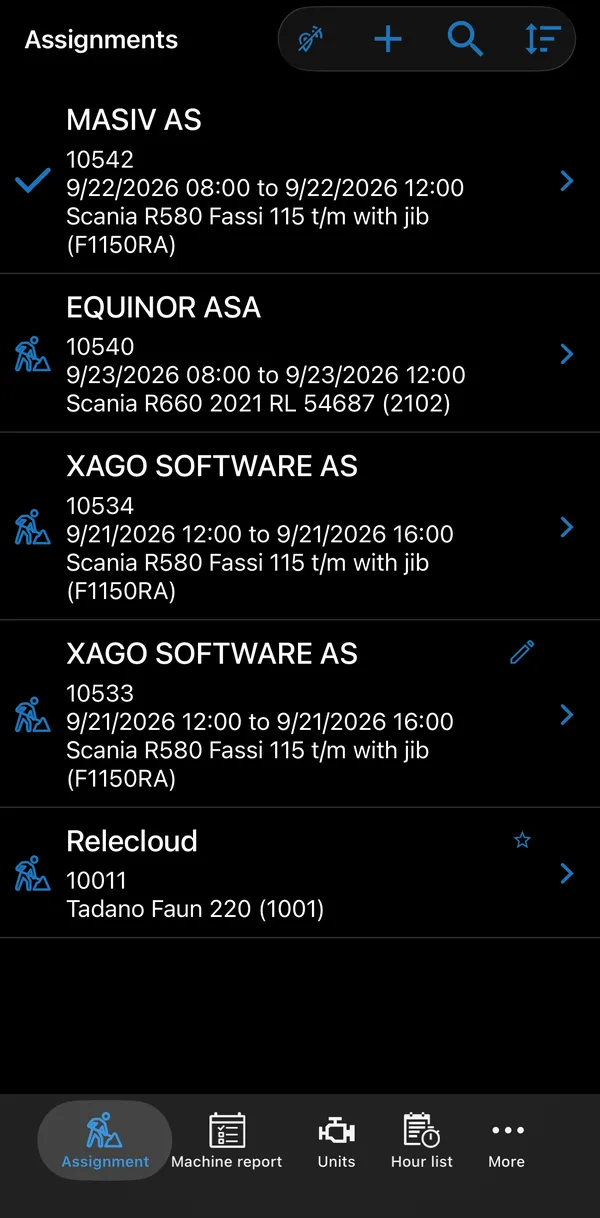
| Icon | Meaning |
|---|---|
| Checkmark (left) | Your active assignment. |
| Worker or tools (left) | Another assignment: a worker for a reservation, tools for a service order. |
| Star (top right) | A new assignment that has never been activated. |
| Pencil (top right) | The assignment has been changed since you last looked at it. |
| Button | What it does |
|---|---|
| + | Create a new assignment; see Creating an assignment. Only with the NewJob permission. |
| Search | Filter the list by order number (matching the beginning) or customer name. |
| Sort | Sort by date, order number or customer. An arrow next to a field shows the current sort field and direction; choose the same field again to reverse the order. |
Tap an assignment to see its details. From the details, ⋮ → Assignments on order lists the other assignments on the same order, with the employee, time and machine, so you can see which co-workers and machines are involved. Tap one to see its details with contact information, such as the employee’s phone number; tap the number to call.
Activating an assignment
Section titled “Activating an assignment”On the assignment details, tap the checkmark to make it your active assignment. You can have one active assignment at a time; activating a new one replaces the previous one. Activating does not send anything to Business Central. Hours and other lines are only sent when they are signed; see Signatures.
Activating needs a connection.
If the assignment’s machine requires a machine report for today, the app shows You have to create and complete machine report … and opens a new report. The assignment is activated once that report is completed. See Machine reports.
When the assignment is activated, the Active Assignment screen opens.
Creating an assignment
Section titled “Creating an assignment”With the NewJob permission you can create an assignment yourself. Tap + on the assignment list to open New assignment. Creating an assignment needs a connection; without one the app shows No network connection.
| Field | What it holds |
|---|---|
| Order type | Reservation or service order. Shown only if you may use both, and then required. |
| Customer | Required. Tap to choose from the Customers list. |
| Employee | Who the assignment is for. Shown only with the NewJobAssignEmployee permission; it is set to you, and you can choose another employee. Only one employee can be chosen. Without the permission, the assignment is yours. |
| Unit | The machine to use. It is preset to the unit of your active assignment, if you have one. It can be left empty; tap ✕ to clear it. |
Tap the checkmark to create the order in Business Central. It becomes your active assignment, replacing any current one, and Active Assignment opens, where you register work, fill in checklists and add pictures as usual. You cannot change or delete the assignment from the app afterwards.
The back arrow cancels. If you have made choices, the app first asks Confirm that you want to discard your changes?
Choosing the customer
Section titled “Choosing the customer”Tap Customer to open the Customers list of customers in Business Central. Each row shows the name and the customer number. Tap a customer to choose it, or touch and hold it to see its details (read only): customer number, name, contact, address, postal code, city, phone and e-mail.
With the NewJobNewCustomer permission, tap + to create a customer that is not in the list. Creating a customer needs a connection.
Choosing the employee
Section titled “Choosing the employee”With the NewJobAssignEmployee permission, tap Employee to pick who the assignment is for from the Employees list. Each row shows the name and the employee number. Tap an employee to choose them, or touch and hold to see their number, name, phone and e-mail.
Active Assignment
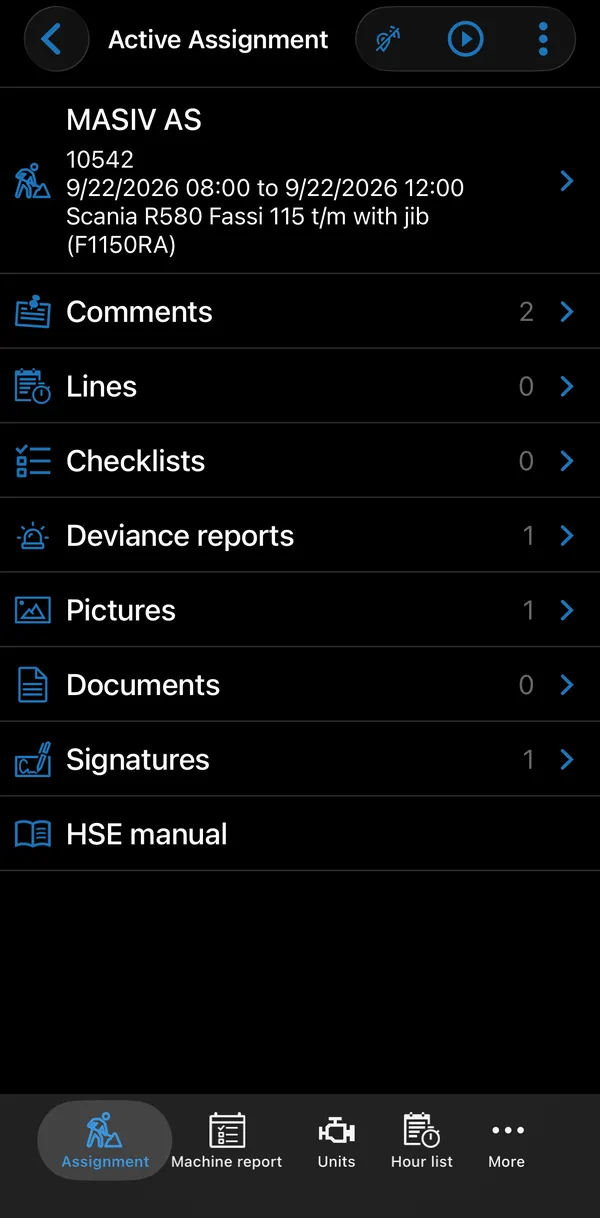
Section titled “Active Assignment”The Active Assignment screen is where you work. The card at the top shows customer, order number, time and machine, and the meeting point when the office has filled one in; tap it for Assignment Details. Each row below opens one part of the assignment, with the number of records on the right.
| Row | What it holds |
|---|---|
| Mandatory JSA | The job safety analysis required for this assignment. Shown only when the assignment has one. |
| Comments | Messages about the assignment from the office, and your own comments. See Comments. |
| Lines | Hours, items and comments registered on the job. See Lines. |
| Checklists | Checklists for the job. See Checklists. |
| Deviance reports | Reports of deviations. See Checklists. |
| Equipment | Equipment for the job, where you register check-out and return. The number shows how many are checked out, with the total in brackets, for example 6 (20). See Equipment. |
| Pictures | Photos from the job. See Pictures and documents. |
| Documents | Files attached to the job. |
| Signatures | Customer and employee signatures. The number is the count of lines already signed. See Signatures. |
| HSE manual | Opens your company’s HSE manual. |
Rows you have no permission for are hidden. A pencil icon on the Comments, Equipment or Documents row means the office has changed it since you last looked.
Assignment Details
Section titled “Assignment Details”Assignment Details shows what is registered on the assignment. The fields and their headings are set up in Business Central, and fields without a value are not shown. Typically they include the order number, employee, planned start and end, machine and when the assignment was activated, and your company may add others, such as a description, unit group, meeting point, pickup address or contact information. The same kind of details are shown when you open an assignment from the list before activating it.
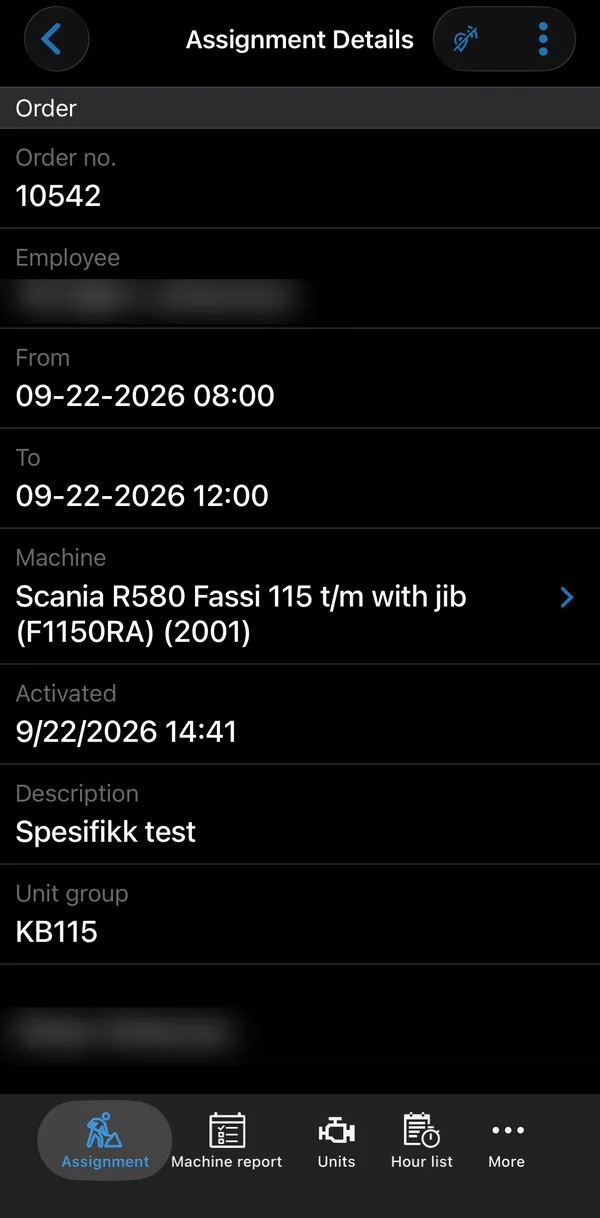
- Values shown in red have changed since the last update.
- Tap the machine to open the unit, where ⋮ leads to its machine reports, warnings and service history; see Units.
- Fields with an icon are actions: tap a phone number to call it, an e-mail address to write an e-mail in the phone’s mail app, and an address to show it in the map app.
- To copy a value, such as a phone number, e-mail address or address, touch and hold it and tap Copy. A short Copied message confirms it, and you can paste the value in another field or app. This works on detail screens, but not on Active Assignment itself.
⋮ → Refresh fetches the latest version of the assignment from Business Central. If anything has changed, the app shows Assignment is updated and lists what changed: Assignment Details, Comments, Equipment or Documents. ⋮ → Assignments on order lists the other assignments on the same order (only with the ShowAllJobs permission).
Comments
Section titled “Comments”Comments is split into two groups, Office comments and Own comments. Each comment shows its date, its type when your company uses comment types, and the text. Office comments you have not opened yet are shown in bold; they are marked as read when you open them.
Tap + to add your own comment (needs the JobCommentsEdit permission). A comment has a date and a text, and a type when your company uses comment types. Tap a comment to open it: with the same permission you can edit your own comments, while office comments are read-only. Comments cannot be deleted from the app, neither your own nor the office’s.
Starting and stopping work
Section titled “Starting and stopping work”Tap Start working (▶︎) when you begin. The app remembers the time and your position. The elapsed time is shown under the Active Assignment title, and the button turns into an animated stop button. Nothing is sent to Business Central; the hours are sent when the line is signed.
If the assignment has a Mandatory JSA, it opens when you start. The Mandatory JSA and any other required checklists must be completed before you can open Lines or stop work; otherwise the app shows You have to complete all the required checklists!
Tap Stop working when you finish. The app opens a new work line prefilled with the start and stop time. The times may be rounded to the interval set on the salary type you choose. Check the line and save; it is only registered when you save it.
Finalizing an assignment
Section titled “Finalizing an assignment”When the job is done, tap ⋮ → Finalize Assignment.
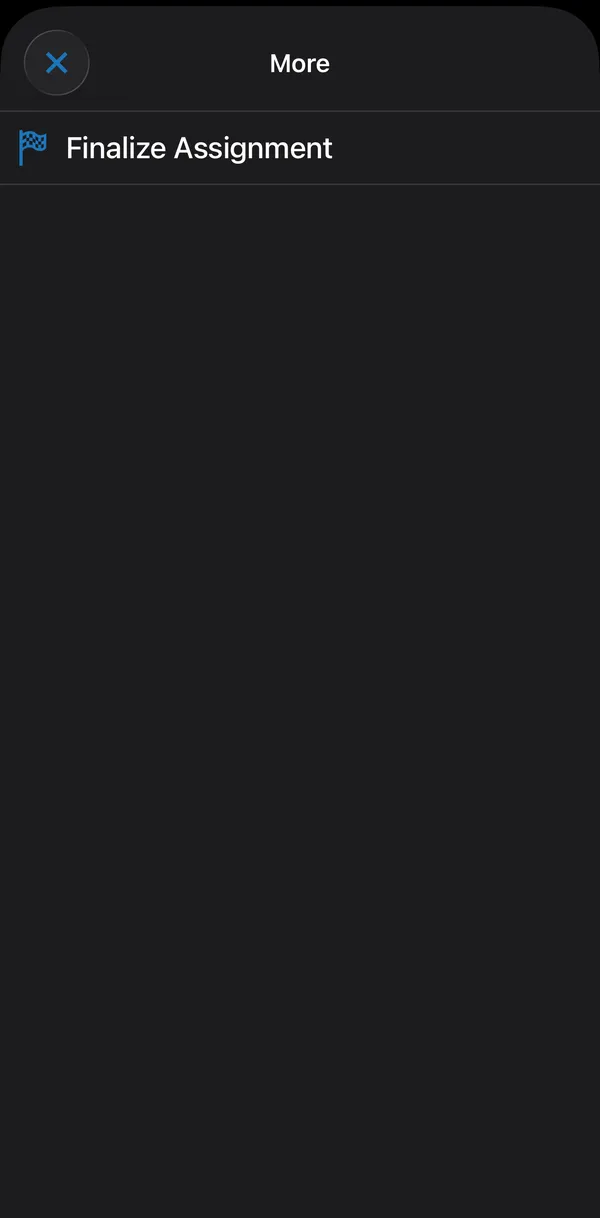
Before it finalizes, the app checks that:
- all lines are signed (You have to sign all timesheet entries before ending the assignment!),
- the Mandatory JSA is completed,
- all checklists are completed (You have to complete your checklists!),
- all equipment is checked in (You cannot finalize the assignment before all equipment is checked in).
It then asks By marking the assignment as finished, it will no longer be available. Continue? After you confirm, the assignment is removed from your phone and you are back at the list.
Finalize Assignment is only shown when you are online and have the JobFinalize permission. You can also finalize while signing; see Signatures.
When the office changes an assignment
Section titled “When the office changes an assignment”The app receives notifications about new assignments and about changes to, or cancellation of, your active assignment. To receive them, notifications must be allowed for the app in the phone’s settings, and you must have opened the app and downloaded your profile on the phone.
- New assignment: you get a phone notification, also when the app is in the background. Tap it to open the assignment list with the new assignment’s details, where you can activate it.
- Changed assignment: if the office changes your active assignment while the app is open, it is refreshed and the message Assignment is updated lists what changed, and the changed rows are marked on Active Assignment.
- Cancelled assignment: if the office cancels your active assignment, the app asks whether you want to close it. If you answer yes, the assignment is closed on the phone and you return to the assignment list.
Your company can also send you general messages. They arrive as phone notifications.