
Hour list
The Hour list tab shows the lines you have registered over a period. It opens with a filter where you limit what you want to see; tap the checkmark to see the result. The hour list needs a connection.
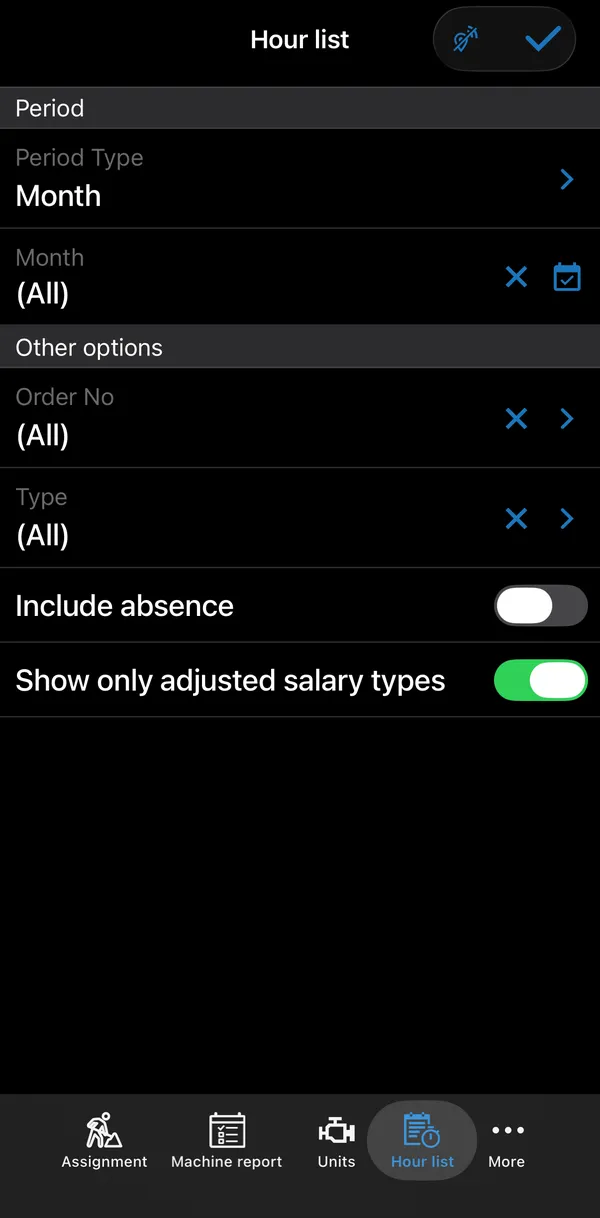
The filter has two sections: Period (the period type and the period) and Other options (order, type, absence and adjusted lines).
| Filter | What it does |
|---|---|
| Period Type | Date, Week, Month or Year. |
| From / To | Shown when Period Type is Date. The first and last date. Leave From empty to include everything before To, and leave To empty to include everything after From. Each field has × to clear it and a calendar button that sets today’s date. |
| Week / Month / Year | Shown for the matching Period Type. Pick the week (shown as week - year), the month (with year) or the year. (All) means no date limit. The calendar button picks the current week, month or year. |
| Order Type | Show only Reservation or Service Order lines. Shown only if you have permission for both. |
| Order No | Limit to one order. Tap to choose from a list of orders; (All) shows every order. |
| Type | Salary Type, Comment or Item; (All) shows every type. |
| No | Shown when Type is Salary Type or Item. Pick one salary type or item; (All) shows all. |
| Include absence | Also show your absence, both approved and pending. Needs the absence permission. |
| Show only adjusted salary types | Show only lines the back office has changed. See Adjusted lines. |
Tap Period Type, Order Type, Order No, Type or No to choose a value from a list. Tap × on one of these fields, or on a week, month or year, to clear it back to (All). Clearing Type also clears No.
The result
Section titled “The result”The result lists the lines under a heading for each date. Work and item lines show an icon (work or item), the salary type or item and the quantity. By default the list is sorted by date, newest first.
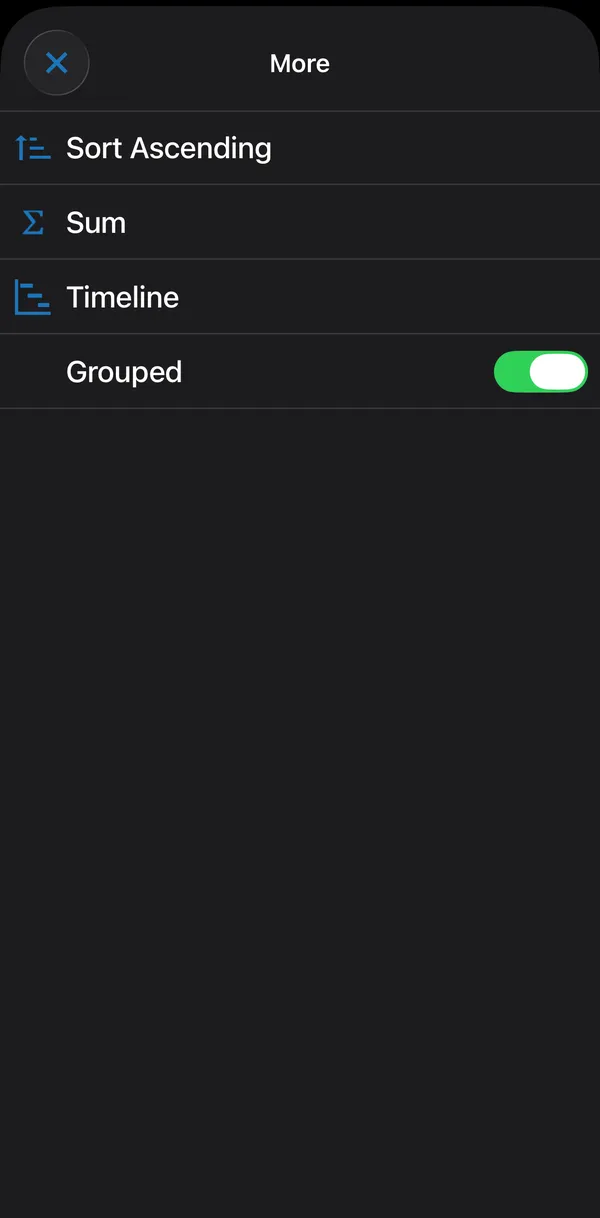
⋮ offers:
- Sort Ascending or Sort Descending: sort by date. The menu shows only the opposite of the current order, and the app remembers your choice.
- Grouped: on by default, and the app remembers your choice. When grouped, lines with the same salary type or item on the same date are combined into one row, with the quantities and amounts added up. A combined row shows x N, the number of lines in it. Switch grouping off to see every line.
- Sum: totals per salary type. See Adjusted lines for how changes show here.
- Timeline.
Tap a combined row to see the lines in it, then tap one of them to see its details. Tap a single line to open its details directly. Tap an absence line to open the absence. Use the back arrow to return to the filter.
Adjusted lines
Section titled “Adjusted lines”The back office can change what you registered: correct the salary type, add a line, or increase or reduce the hours. A salary type line the back office has adjusted is marked with a warning triangle in the result. Switch on Show only adjusted salary types to see just those lines, so you can check what was changed.
⋮ → Sum from the hour list also shows adjustments: the original quantity is struck through and the adjusted quantity is shown next to it.
If your company has turned on the setting for it in Business Central, the back office must write a comment on every change.