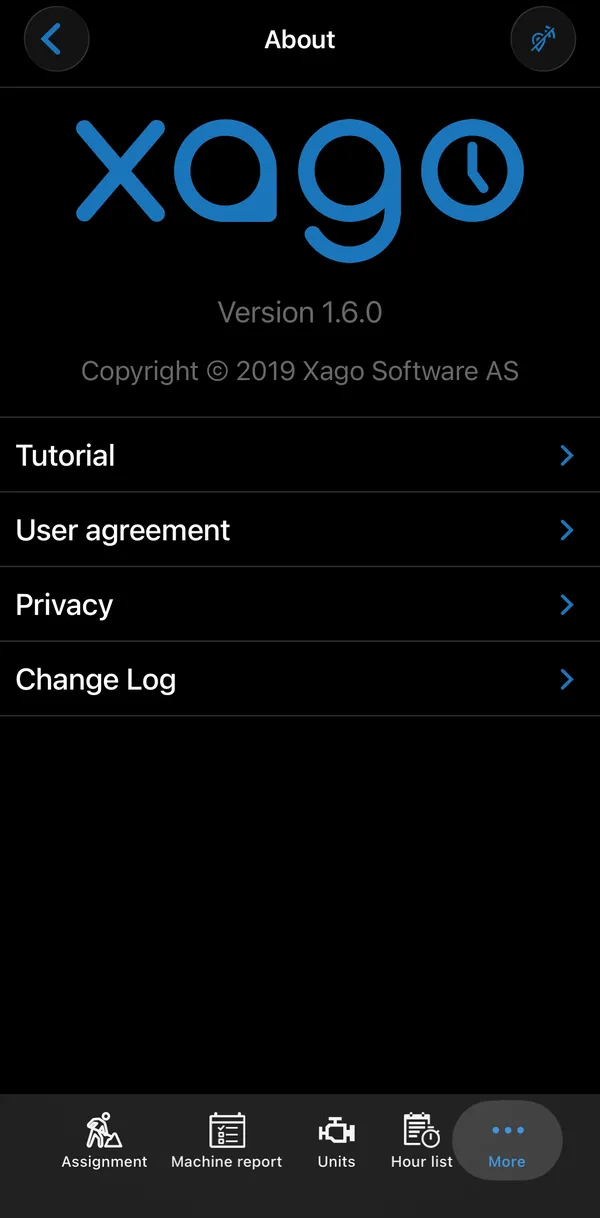
Settings and support
Settings (under More when the tab bar is full) holds your profile, the app language, support and information about the app.
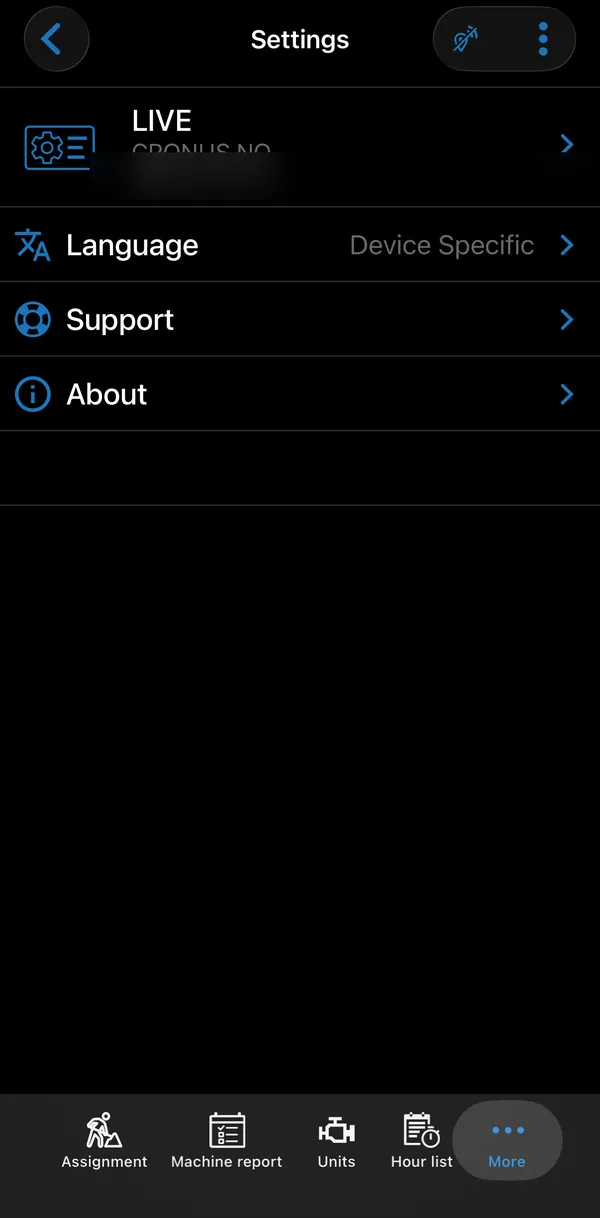
The ⋮ menu has the switches that affect the whole app:
| Setting | What it does |
|---|---|
| Work offline | Stop all contact with the server. See Working offline. |
| GPS-tracking | Turn sharing of your position on or off. See Map. |
| Use Google Maps | Open locations in the Google Maps app, when it is installed, instead of Apple Maps. |
| Update profile | Download your profile and permissions again. |
Working offline
Section titled “Working offline”Everything you save is stored on the phone first. Hours and other lines are only sent to Business Central when they are signed; if you sign while offline, they are sent as soon as there is a connection. Other registrations, such as absence and machine reports, are sent as soon as you save them when there is a connection; otherwise they are sent once there is one.
Turn on Work offline when you know you will be without coverage, or to avoid mobile data.
The crossed-out Wi-Fi icon at the top means the app has no connection: either the phone has no network coverage, or Work offline is on. Tap it to go online again. In offline mode the app asks Deactivate Offline mode? first; if the phone has no network, it says No network connection instead.
Some actions need a connection and are not available offline: creating an assignment or a customer, activating and finalizing assignments, the hour list and equipment check-in.
When registrations are waiting to be sent, a sync icon appears at the top. Tap it to send them now. If sending fails, the registrations stay on the phone and the sync icon remains until they have been sent.
The app checks Business Central for changes when you open it, about once an hour while it is open, and when a notification about your active assignment arrives. To check every minute instead, use Rapid background updates under Support.
Support
Section titled “Support”Settings → Support shows the support address, support@xago.no. Tap the address to write an e-mail to support.
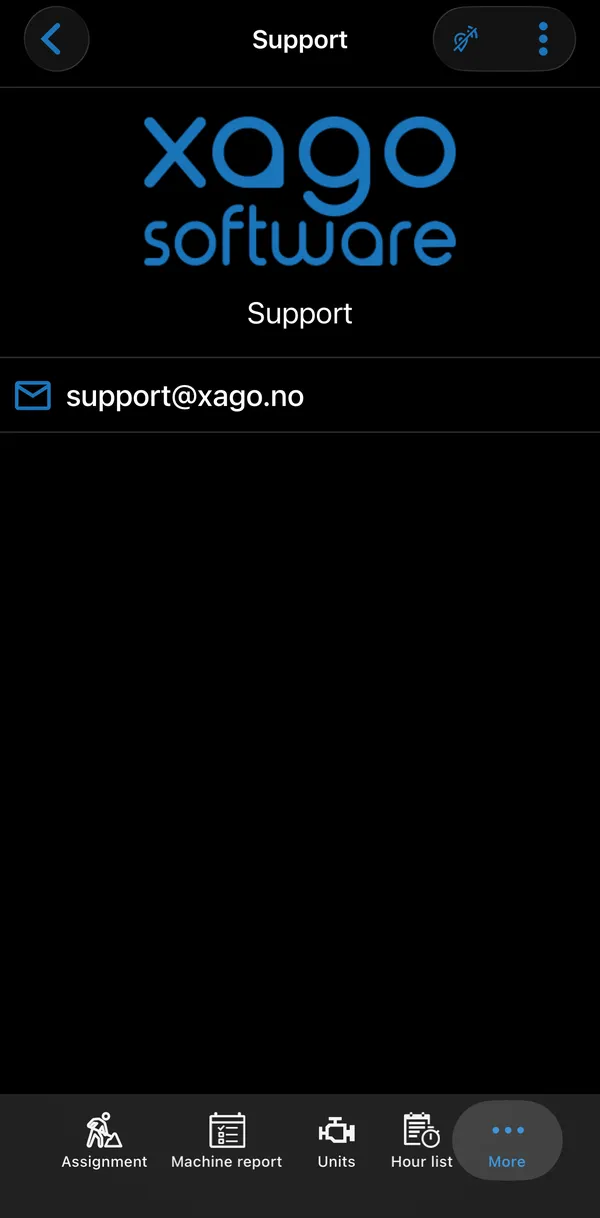
Its ⋮ menu has tools support may ask you to use:
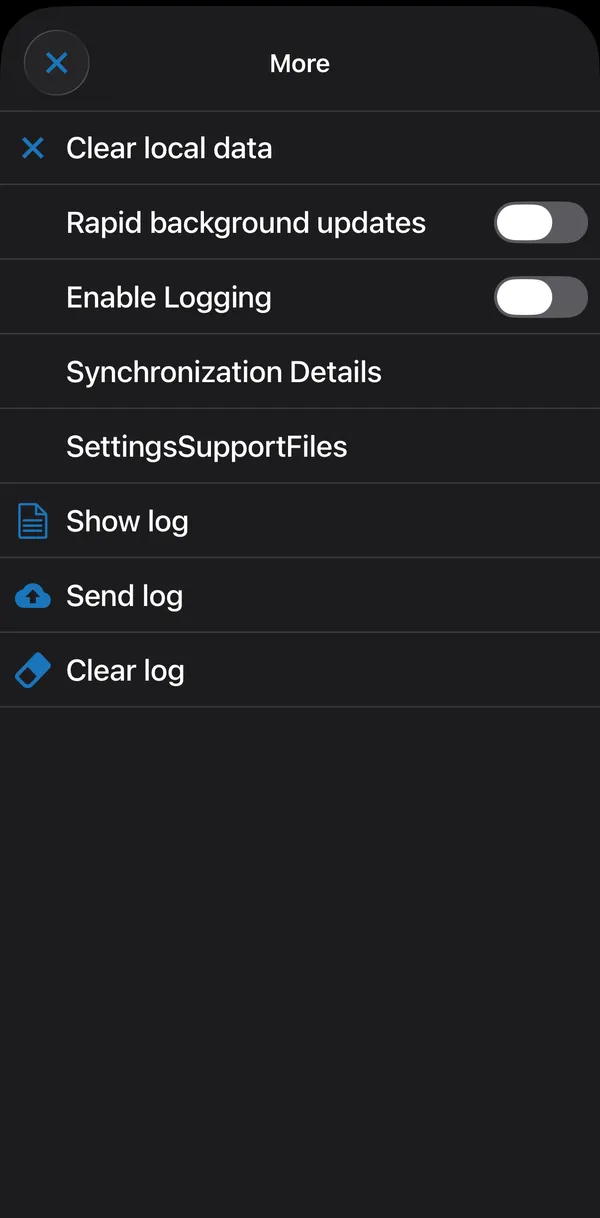
| Tool | What it does |
|---|---|
| Clear local data | Delete the assignments and their lines, machine reports, absence, items, units, favourites and pictures stored on this phone. Your profile is kept. Registrations that have not been sent are lost. The app asks twice. |
| Rapid background updates | Check for changes every minute instead of every hour, until the app is restarted. |
| Enable Logging | Record a detailed log and upload it every six hours. |
| Synchronization Details | List what is waiting to be sent, or Everything is synchronized. |
| Show log | Show the log on the phone. |
| Send log | Upload the log to Xago support, then clear it. |
| Clear log | Clear the log without sending it. |
Settings → About shows the app version, links to the Tutorial, User agreement and Privacy pages, and the Change Log. The Change Log is downloaded from Xago and lists what is new in each app version, with its date.