
Pictures and documents
Pictures
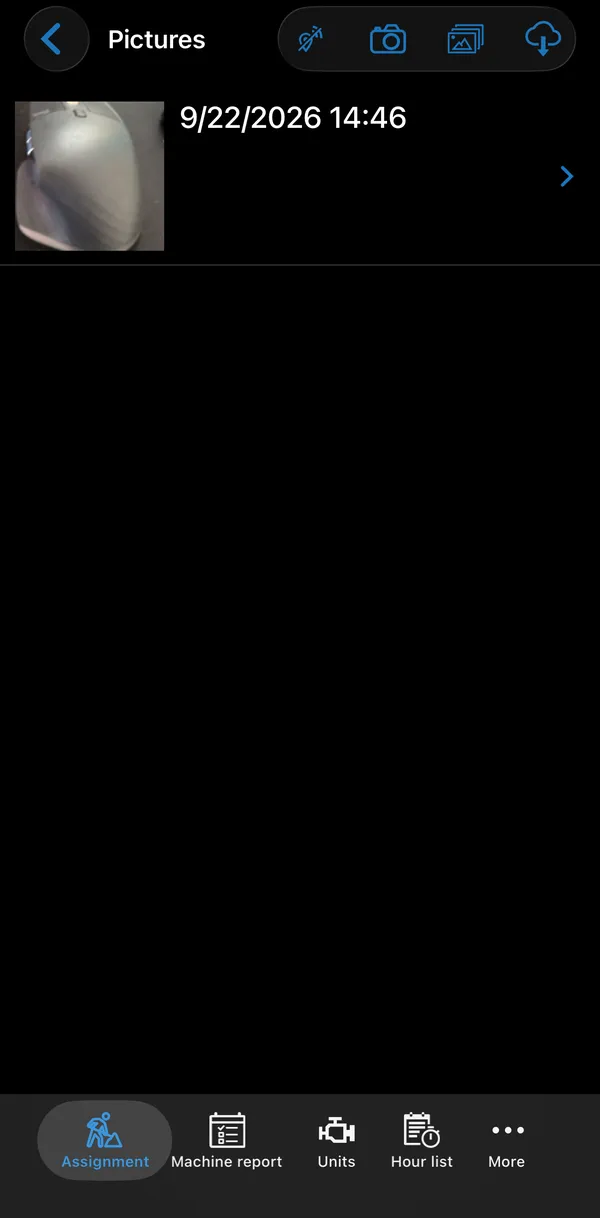
Section titled “Pictures”Active Assignment → Pictures lists the photos on the job: the pictures you have taken and any pictures registered on the assignment. Use the buttons at the top to take a photo with the camera, pick one from the photo library, or Download all to fetch the full-size images from the server.
Each picture is listed with a thumbnail, the date and time it was taken, and its description.
Pictures taken in a checklist or machine report question belong to that checklist or report, not to the assignment’s Pictures. See Checklists.
The picture screen
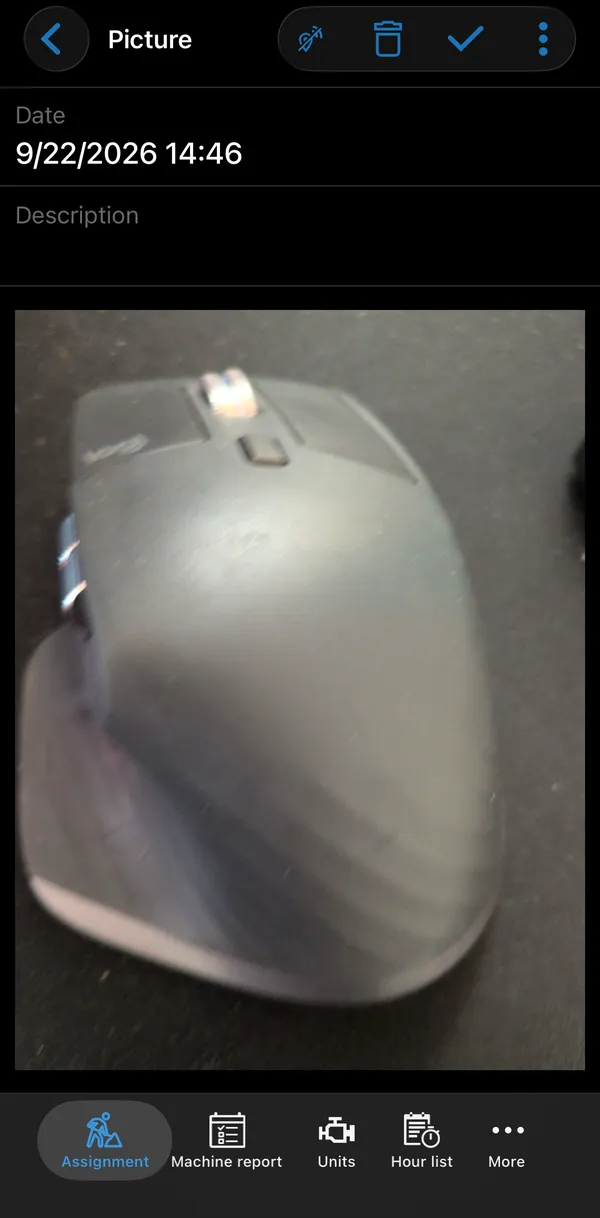
Section titled “The picture screen”Tap a picture to open it. The Picture screen shows the Date it was taken, and you can add a Description. Pinch with two fingers to zoom.
- The check mark saves your changes.
- The trash button deletes the picture after you confirm Delete this picture?. A picture that is already part of a signature cannot be deleted: the app shows This image is included on a signature and therefore cannot be deleted.
- When you take a new picture with the camera, a Save to gallery switch also saves a copy to the phone’s photo library. The switch is not shown for pictures picked from the photo library. Once you have saved a picture with it on, it is on by default for your next pictures.
- If your company lets you include pictures in a signing, the Include on next signature switch marks the picture to be included the next time someone signs. After the picture has been signed, the switch is replaced by a Signature row; tap it to open the signing. See Signatures.
The ⋮ menu has the editing tools:
| Tool | What it does |
|---|---|
| Draw | Draw directly on the picture, for example to mark something. |
| Crop | Crop the picture to remove parts that are not relevant. |
| Save to gallery | Save a copy to the phone’s photo library. Shown for saved pictures, not while you add a new one. |
Drawing, cropping and deleting need the picture-editing permissions, and a picture that has already been uploaded needs a separate permission (see Permissions).
Drawing and cropping
Section titled “Drawing and cropping”While you draw or crop, the other fields are hidden and only the picture is shown.
- Draw: Undo removes the last stroke. Stroke Width shows a slider for the line thickness, and Color Palette shows a row of colour dots: black, white, grey, light grey, red, green, blue, yellow and orange. These two are in the toolbar or under ⋮, depending on the space. The app remembers the width and colour you chose.
- Crop: the area outside the crop frame is dimmed. Drag the white corners of the frame to choose the part to keep.
Tap the check mark to apply the drawing or crop, or X to cancel it (the app asks Confirm that you want to discard your changes? if you have changed something). Then tap the check mark again to save the picture.
Documents
Section titled “Documents”Active Assignment → Documents lists the files the office has attached to the job, for example manuals. Each document is listed with an icon and its name. Documents from Business Central are read-only. If your company allows uploads, you can add a document from the camera, the photo library or the Files app.
- Tap a document to open it. If it is not on the phone yet, it is downloaded first, which needs a connection.
- Tap the download button (cloud) to download all the documents on the assignment to the phone.
Saved pictures and documents are sent as soon as there is a connection.