
Install and sign in
Install the app
Section titled “Install the app”Download xago from the App Store (iPhone) or Google Play (Android). The app is called xago on the home screen.
Before anyone can sign in, the company must have the Xago Mobile apps installed in its Business Central tenant.
Sign in
Section titled “Sign in”You sign in with your mobile number and a password. The app uses them to download your profile, which connects the app to your company’s Business Central and carries your permissions.
- Open the app. Until a profile is downloaded only the Settings tab can be used.
- In Settings, tap the profile card at the top. It says No profile until you have signed in.
- Enter Your mobile and Password, then tap the checkmark.
- If your number is connected to more than one company, choose one under Choose profile. With only one profile this step is skipped.
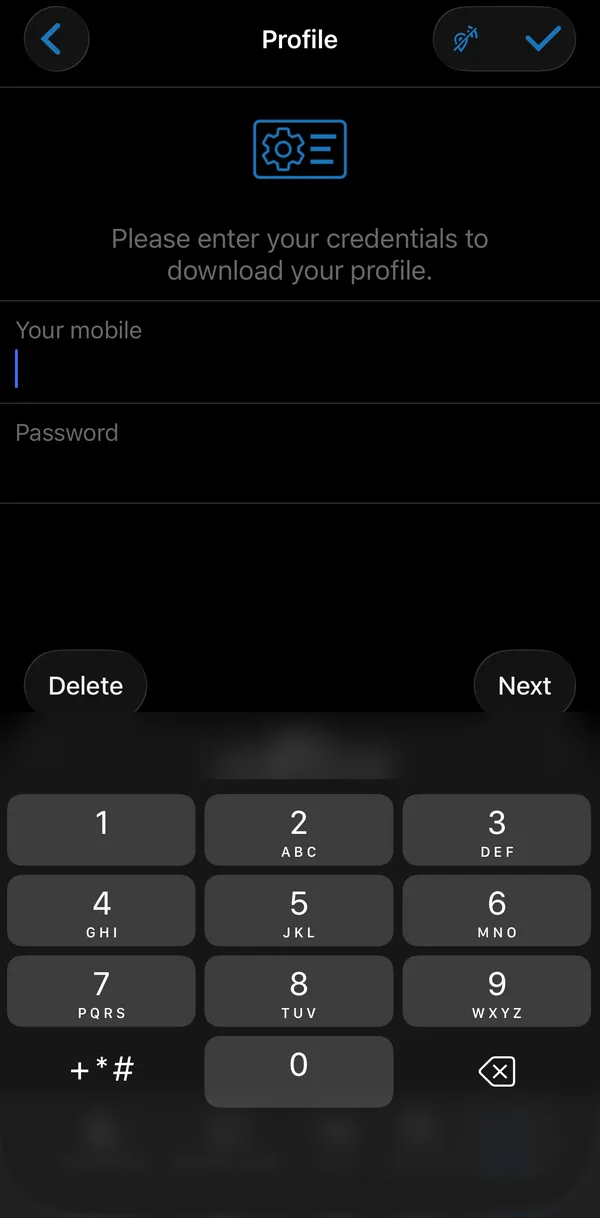
App users are created by the company in its own Business Central environment and synchronized with Xago’s profile system. Contact your administrator if you have not received a password.
Once the profile is downloaded, the card in Settings shows the profile name, company and your mobile number, and the tabs you have access to appear.
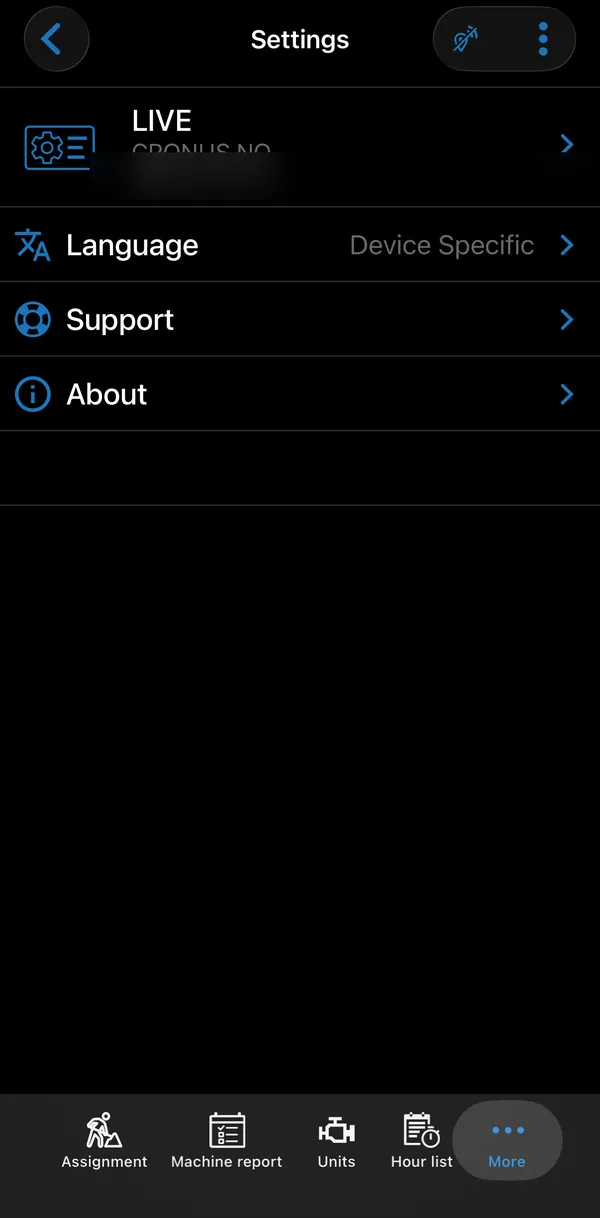
When permissions change in Business Central, open Settings, tap ⋮ and choose Update profile to download them again. This refreshes the profile you already have and does not delete anything on the phone.
Switch profile
Section titled “Switch profile”To connect the app to another company or Business Central environment, tap the profile card in Settings again and sign in with the other profile.
Choose the language
Section titled “Choose the language”The app follows the phone’s language by default (Device Specific). To use another language, open Settings → Language and pick English, Danish, Norwegian or Swedish. The selected language is marked with a star. The change applies immediately.
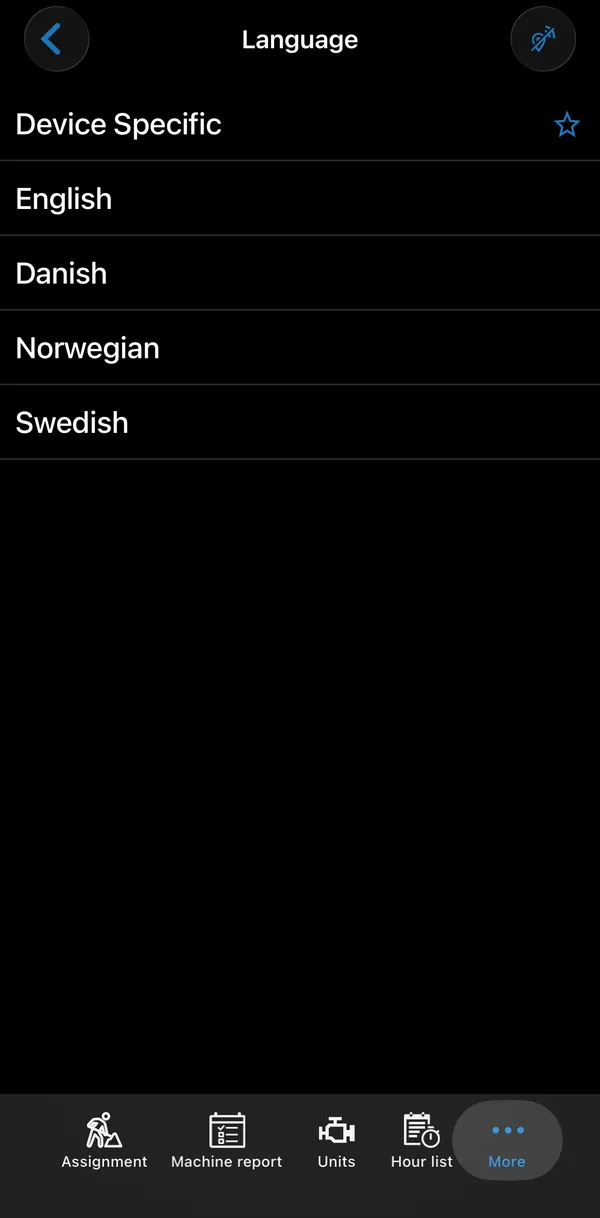
Texts that come from Business Central, such as checklist questions and salary type names, are shown as they are set up there.