
Absence
The Absence tab (under More when the tab bar is full) lists your absence grouped by month, newest first. The list opens at the absence nearest today.
Each row shows the description (by default the name of the cause), the date or period below it, and the status icon on the right:
- a single day shows just the date;
- several days show date to date;
- part of a day shows the date with the from-time to the to-time.
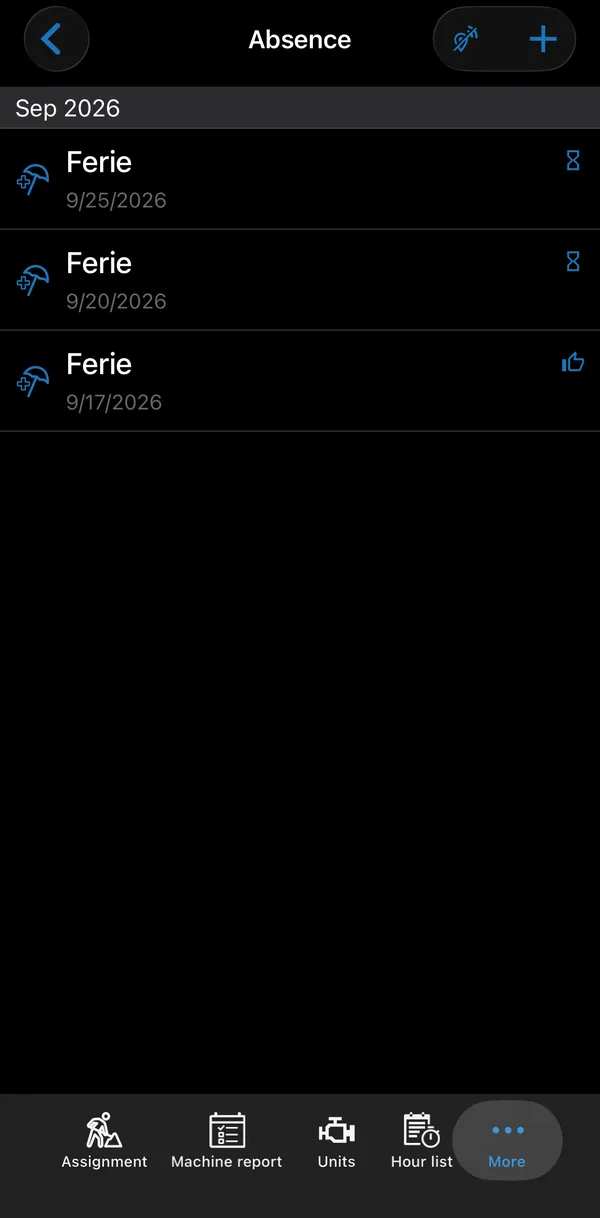
| Icon | Status |
|---|---|
| Hourglass | Pending — waiting for approval. |
| Thumbs up | Approved. |
Registering absence
Section titled “Registering absence”You can register and change absence if you have the AbsenceEdit permission; without it, + is not shown and absence opens read-only.
Tap +. The list of causes opens straight away; pick one, then fill in:
| Field | What it is |
|---|---|
| Cause | The kind of absence, for example holiday, time off in lieu, a doctor’s visit or a course. The list of causes comes from Business Central. |
| Description | Filled in with the name of the cause; you can change it. |
| Status | Shown only when you open saved absence: Approved (thumbs up) or Pending (hourglass). |
| Full Day | Switch on when the absence is one or more whole days, so you don’t have to give times. |
| From date / To date | First and last day. Each has a calendar button that sets today’s date. |
| From time / To time | Shown only when Full Day is off. |
Save with the checkmark. The absence is sent to the back office for approval as soon as you save it when there is a connection; otherwise it is sent once there is one. It shows with the hourglass icon until it is approved.
The back arrow leaves without saving. If you have made changes, the app asks Confirm that you want to discard your changes? first.
Changing or deleting absence
Section titled “Changing or deleting absence”While absence is Pending you can open it to change it, or delete it with the trash can at the top. The app asks Do you want to delete this absence? before deleting it.
Once the back office approves it, it is locked: it opens read-only, with no trash can or checkmark. If something needs to change after that, ask the back office: they can remove the approval in Business Central, which unlocks the absence again.