
Distribution status
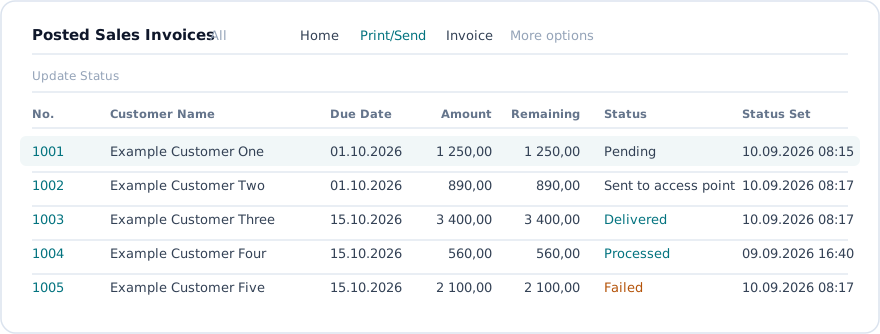
After an invoice is sent, the access point reports how the delivery is going. Every document produces receipts and status messages as it moves through validation, channel selection and delivery. This distribution status is written back to the posted document in Business Central, so you can follow up without leaving the system.
Where the status is shown
Section titled “Where the status is shown”The Posted Sales Invoices and Posted Sales Credit Memos lists, and the corresponding document pages, carry two fields from Xago Invoice:
| Field | Meaning |
|---|---|
| Status | The current distribution status of the document. |
| Status Set | The date and time the status was last updated. |
Status values
Section titled “Status values”| Status | Meaning |
|---|---|
| Pending | Posted, but not yet sent to the access point. |
| Sent to access point | Handed over to the access point; delivery is in progress. |
| Delivered | Delivered to the recipient over the PEPPOL network. |
| Processed | Sent by email or another distribution method outside PEPPOL, such as a consumer channel or print. |
| Failed | The access point could not process or deliver the document. See When a delivery fails. |
Delivered and Processed are both successful outcomes; the difference tells you which route the document took.
How the status is updated
Section titled “How the status is updated”The status is refreshed in two ways:
- Update Status — an action under Print/Send on both the list and the document page. Use it when you want the latest status for a document right now.
- The job queue — the XINV Transfer Job fetches status for all sent documents at the interval it is scheduled to run.
When a delivery fails
Section titled “When a delivery fails”A document with status Failed was rejected or could not be delivered by the access point. Typical causes are missing or invalid recipient data — an organisation number that does not match ELMA, or an email address that does not validate.
To fix it, correct the data and send again. Two actions under Print/Send on the posted document cover this:
| Action | What it does |
|---|---|
| Resend | Sends the document again, provided its current status allows it. |
| Force Send | Sends the document again regardless of its status, even if it has already been sent. Only visible to users with the XINV Admin role. |

Force Send is for the case where a document failed at the access point and the data has since been corrected in Business Central — for example the organisation number, if the setup takes it from the customer, or Your Reference, which can be changed with the Edit action on a posted sales invoice.
Inspecting the PEPPOL file
Section titled “Inspecting the PEPPOL file”Generate XML, also under Print/Send on the posted document, downloads a copy of the actual PEPPOL 3 (EHF) file that is sent to the access point. Use it to check the document contents when a delivery fails or a recipient questions what they received.