Checklists and deviance reports
Checklists, deviance reports and the Mandatory JSA are all forms built from templates in Business Central. They work the same way; they are listed separately on Active Assignment. Which checklists and questions you see depends on how your company has set up its templates, so they vary from company to company.
Some checklists are required. Required checklists must be completed before you can open Lines or stop work, and every checklist you have started must be completed before you can finalize the assignment (see Assignments). Other checklists are optional.
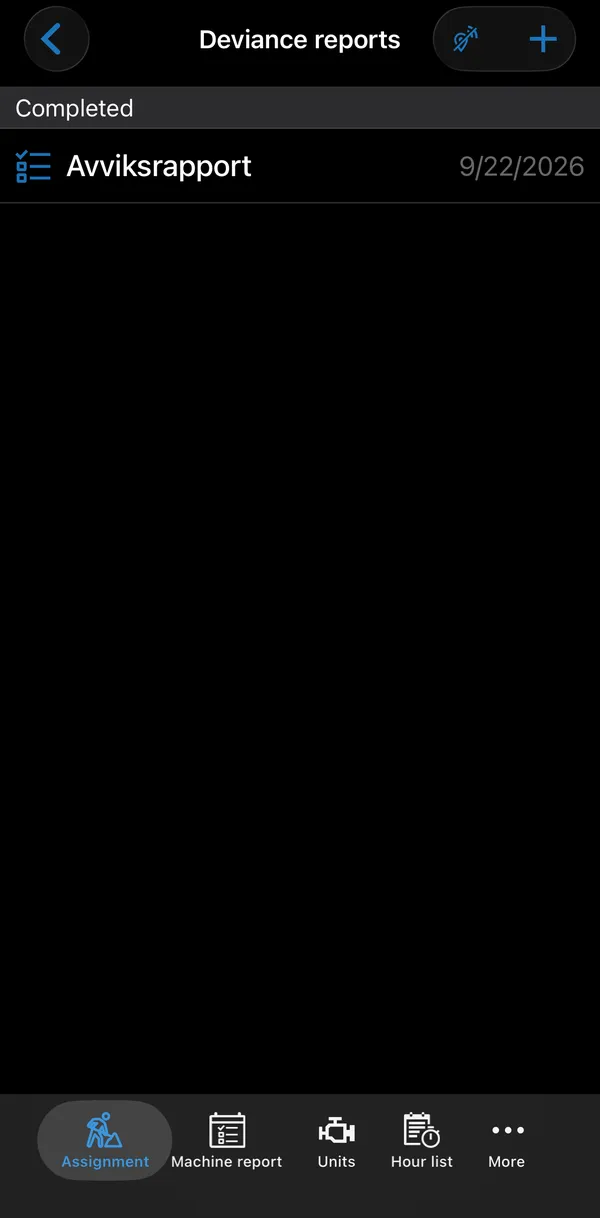
The checklist list
Section titled “The checklist list”Checklists shows all checklists on the assignment, grouped as:
| Group | Contains |
|---|---|
| Required | Required checklists that are not completed yet. |
| Completed | Completed checklists. |
| Non-required | Optional checklists that are not completed yet. |
Tap a checklist to open it, for example to continue one you have started.
If a required checklist has not been completed, tapping Checklists on Active Assignment opens it directly. When you complete it, the next required checklist opens, until all are done; then the list appears.
Creating a checklist
Section titled “Creating a checklist”- Open Checklists or Deviance reports and tap +.
- On Checklist templates, pick a template. Templates are split into Required and Non-required.
- Fill in the form and save.
The checklist screen
Section titled “The checklist screen”The title is the template name; a completed checklist shows Completed under it. The top bar has:
| Button | What it does |
|---|---|
| Back arrow | Leaves the checklist without saving. If you have made changes, the app asks Confirm that you want to discard your changes? |
| Validate (lifebuoy) | Lists the required questions that are not filled in. Shown only while required fields are missing. |
| Checkmark | Saves the checklist. See Completing. |
Question types
Section titled “Question types”A template can contain:
| Type | How you answer |
|---|---|
| Heading / text | Text that groups or explains the questions below it. No answer needed. |
| Yes/No | Tap yes or no. Tap the speech bubble to add a remark. |
| Checkbox column titles | Labels the checkbox columns below it. No answer needed. |
| Checkboxes | A row of one to five checkboxes. Some rows allow one tick, others several. Tap the speech bubble to add a remark. |
| List | Tap the question to open the options and pick one or several. The chosen values are shown on the question, separated by commas. |
| Text | Free text, single or multiple lines. Tap X to clear the text. |
| Number | Use + and −, or tap the field and type the value. Decimals are allowed when the template permits. The value may have to be within a range (Value must be between … and …). |
| Date | Tap the icon on the right to insert today’s date, or tap the field to pick a date. Today’s date is shown with (today). |
| Time | Tap the icon on the right to insert the current time (rounded), or tap the field to pick a time. |
| Unit | Pick a machine from the unit register. The active assignment’s machine is filled in automatically. |
| GPS | Tap to store your current position; the app first asks Use current position? This cannot be changed later! Once stored, tap it to show the position on a map. |
| Picture | Attach photos. The number attached is shown on the right. The photos belong to the checklist or machine report, not to the assignment’s Pictures. Shown only if your profile allows checklist pictures. |
| Signature | Tap to open the signing screen and sign. A template can also have an employee signature, which can be prefilled with your saved signature. |
| Multiple signatures | Add any number of signatures. The number added is shown on the right. |
| Link | Opens a web page or document. If the question is required, you must open it before the checklist can be completed. |
Some questions appear only after a certain answer.
Questions marked with * are required. A required question needs an answer: for Yes/No you must pick yes or no, and for pictures and multiple signatures at least one must be added.
Remarks. Yes/No questions and checkboxes have a speech bubble. Tap it to add or show a remark of up to 250 characters; tap X to clear it. The bubble is blue when the question has a remark.
Status icons. Signature, GPS and Link questions show a status icon instead of a value: a warning symbol until the question is handled, and a checkmark when it is done. For a link, the icon is shown only when the link is required.
Completing
Section titled “Completing”Tap the checkmark at top right to save. What happens depends on whether the checklist is filled in:
- Required fields are still missing: your changes are saved, and you can continue later.
- All required fields are filled in: the app says All required fields are filled out. and
offers:
- COMPLETE: saves and marks the checklist as completed. It can no longer be changed.
- SAVE: saves without completing.
- CANCEL: returns to the checklist without saving.
To see what is missing, tap Validate. The app shows The following required fields are not completed: followed by the missing questions, with Goto first to jump to (and highlight) the first one, or OK to close.
If your company uses it, the switch Include on next signature at the bottom adds the checklist to the next signing. It can be changed after completion; tap the checkmark to save the change. Once the checklist is signed, the switch is replaced by a Signature row that opens that signing.
Once a checklist is completed and synced, it can be sent with ⋮ → Send by e-mail when your company’s settings allow it.
Warnings
Section titled “Warnings”A completed checklist can get warnings for answers that need follow-up. With the ChecklistWarnings permission:
- the checklist is marked with a warning triangle in the list;
- if the assignment also allows warnings, the checklist shows This checklist has warnings! at the top.
Tap the banner, or ⋮ → Warnings on checklist, to see the warnings. Each entry shows when it was last handled, its status, the question it concerns, the description and any comment from whoever handled it. Status names are set up by your company.
Tap a warning to open Warning details, with where the warning came from (template, order, unit, employee and date), the checklist line number (Line no), the question, the description, the comment, the status, who changed the status and when, and the assigned user. With the ChecklistWarningEdit permission you can tap Edit to change the status and add a comment. Warnings on machines are also shown in the unit register.
Mandatory JSA
Section titled “Mandatory JSA”When an assignment has a mandatory job safety analysis, Mandatory JSA appears at the top of Active Assignment. It opens when you start work and must be completed before you can register lines, stop work or finalize the assignment.